

Learn how to activate 5G on your device and enjoy faster speeds, improved connectivity, and enhanced mobile experience. Follow the step-by-step guides below for iOS, Android, and tablets.
How to Enable Zong 5G On Your Device?
1. iPhone (iOS)
Connect to the 5G network to take advantage of the fastest mobile connection available. Follow these steps to learn how to activate 5G on your Apple iPhone Air.
1. Go to the Home screen. Choose Settings.
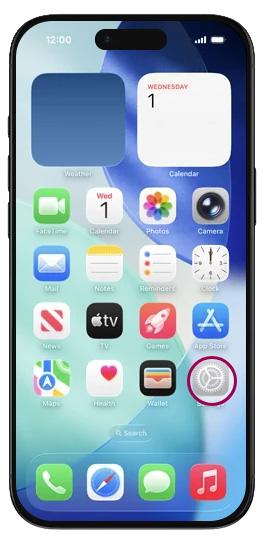
2. Scroll down. Choose. Cellular
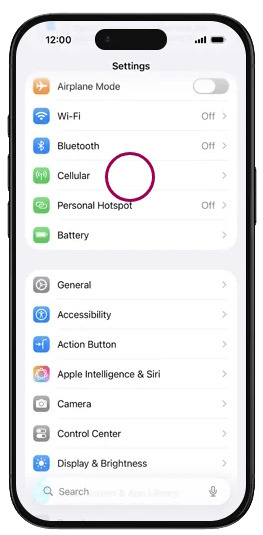
3. Choose Cellular Data Options.
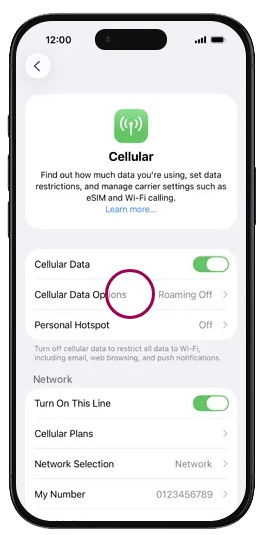
4. Choose Voice & Data.
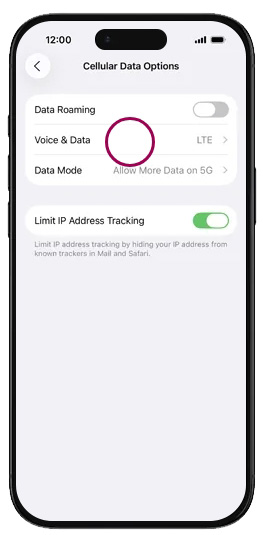
5. Choose 5G Auto.
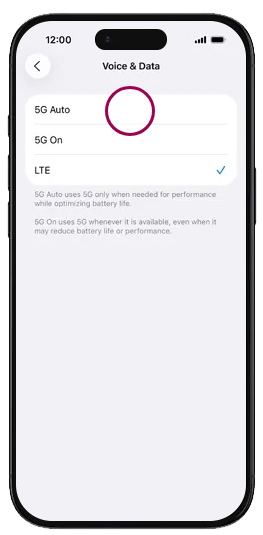
The Apple iPhone Air has now been configured for use of 5G networks. Return to the Home screen.
2. iPad (iOS).
Connect to the 5G network to take advantage of the fastest mobile connection available. Follow these steps to learn how to activate 5G on your Apple iPad 13” (M4).
1. Go to the Home screen. Choose Settings.
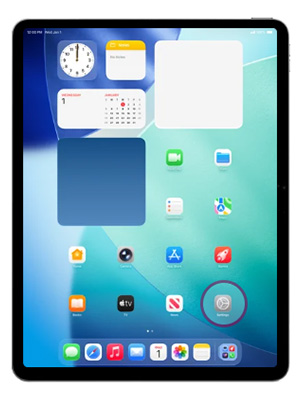
2. Scroll down the left menu. Choose Cellular Data.
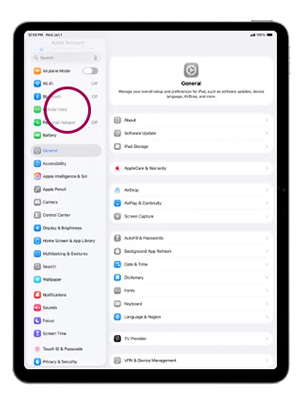
3. Choose Cellular Data Options.
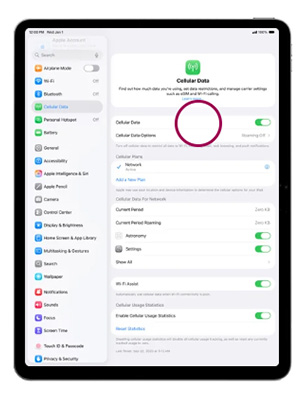
4. Choose Data.
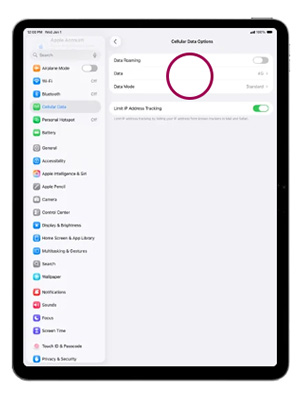
5. Choose 5G Auto.
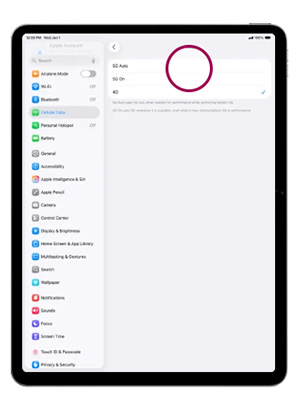
The Apple iPad 13” (M4) has now been configured for use of 5G networks. Return to the Home screen.
3. Android
Connect to the 5G network to take advantage of the fastest mobile connection available. Follow these steps to learn how to activate 5G on your Samsung Galaxy S25+.
1. Go to the Home screen. To open the menu, swipe up on the screen.
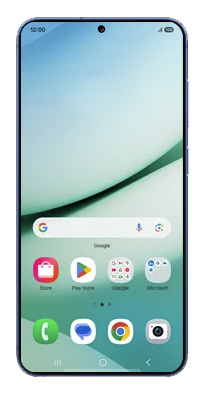
2. Choose Settings.
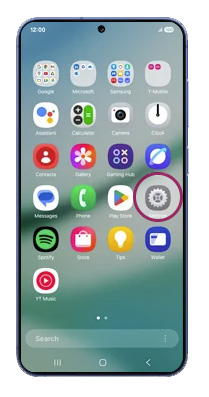
3. Scroll down. Choose Connections.
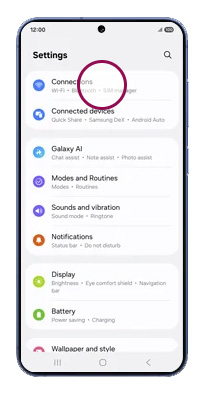
4. Choose Mobile networks.
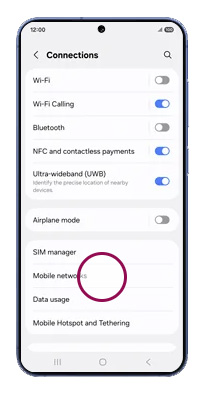
5. Turn on Allow 5G service.
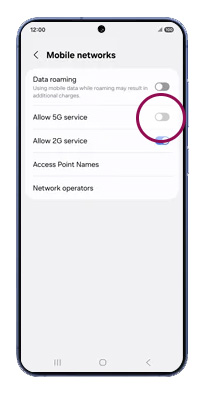
The Samsung Galaxy S25+ has now been configured for use of 5G networks. Return to the Home screen.
4. Tablet Android
Connect to the 5G network to take advantage of the fastest mobile connection available. Follow these steps to learn how to activate 5G on your Samsung Galaxy Tab A11+ 5G.
1. Go to the Home screen. To open the menu, swipe up on the screen.
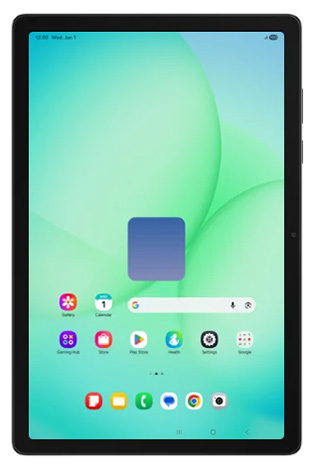
2. Choose Settings.
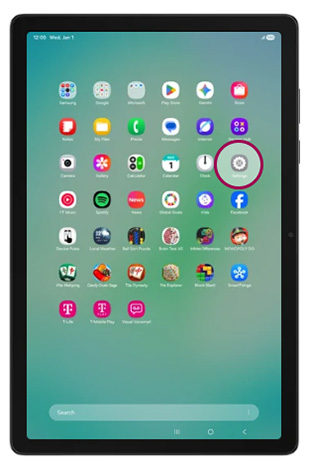
3. Scroll down the left menu. Choose Connections.
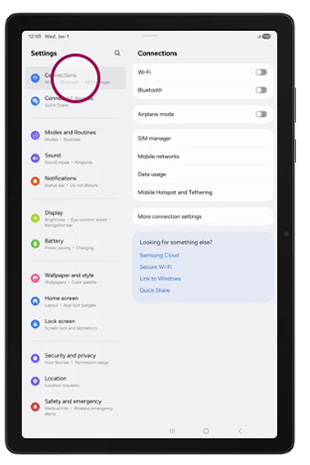
4. Choose Mobile networks.
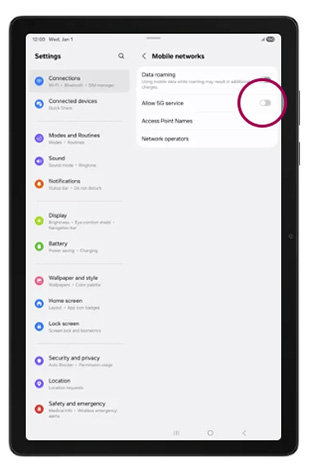
5. Turn on Allow 5G service.
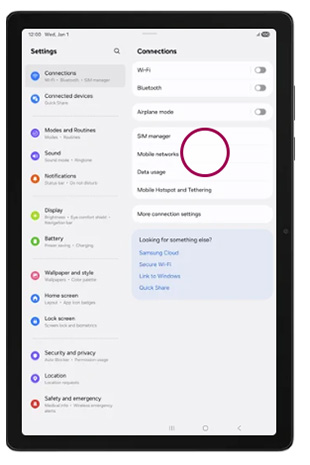
The Samsung Galaxy Tab A11+ 5G has now been configured for use of 5G networks. Return to the Home screen.




Amazing article
Good a blog toper